
Field Heroes
Dependent Issue Picker
Select one issue from a filtered list. Chain fields such as Program → Project → Subproject: each choice narrows the next.

What Dependent Issue Picker does
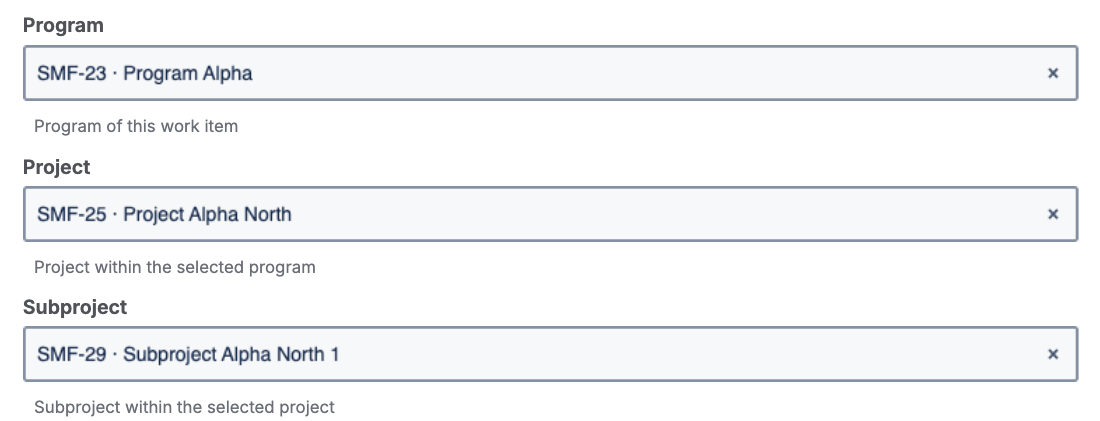
Field Heroes Dependent Issue Picker adds a field type for selecting one issue from a list defined by JQL (Jira Query Language, the query language of Jira's issue search). Fields can be chained, for example Program → Project → Subproject: the selection in one field filters the list of the next.
It belongs to the Field Heroes app series. The field stores the key of the selected issue.
Each choice narrows the next
- One issue per field: Each field selects one issue from the results of its JQL.
- A list your admin defines: An administrator defines for each field context which issues can be selected.
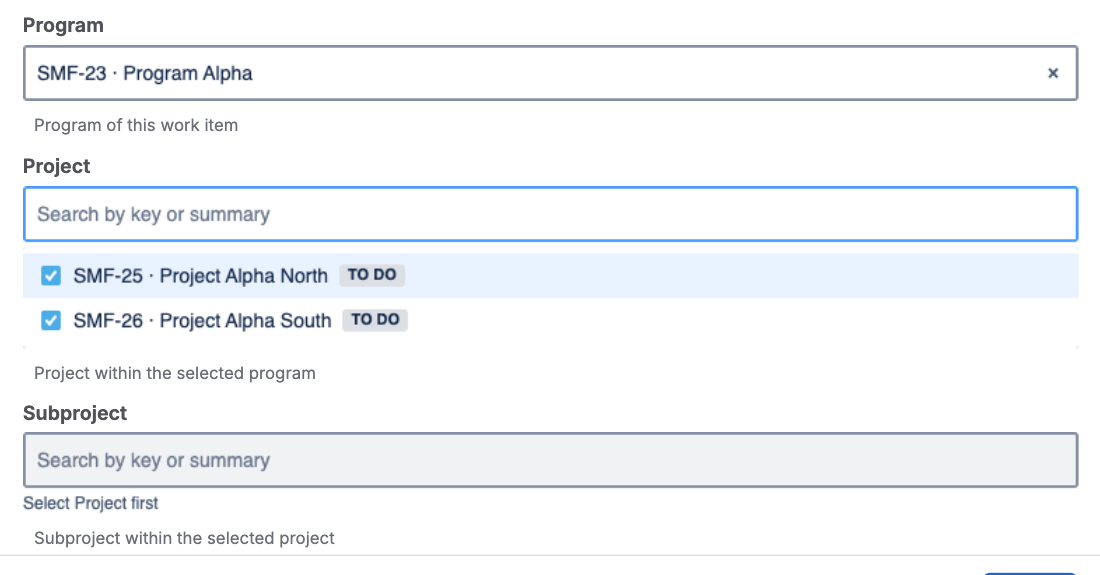
- Each choice narrows the next: With a parent field, {parent} is replaced by the issue selected there. Chain fields like Program → Project → Subproject.
Selecting and changing values
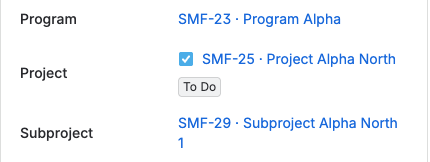
- In the issue view and on transition screens, the dependent field uses the saved value of the parent field. In the issue view, changing the parent field clears this field after saving. On transition screens, changing the parent field clears this field after the transition.
- Errors such as missing settings, an invalid JQL or a timeout appear as a message in the field.
What to tell your colleagues
- Type to search. Enter an issue key or words from the summary. Scroll to load more results.
- Fill from top to bottom. A dependent field stays locked until the field above has a value (“Select <field> first”).
- Changing a higher field clears the fields below. In the create dialog this happens at once. After you save a new parent value in the issue view or on a transition screen, the fields below it are cleared, usually within seconds. Reload the issue if the old value is still shown.
- An issue is missing from the list? Either it does not match the field's JQL, or you are not allowed to view it. Ask your Jira administrator.
- Lists, search results and exports show the issue key, not the summary.
Pick a related issue from a defined set
Each field offers the issues of one JQL query. That makes the picker useful wherever users should choose a related issue from a defined set instead of typing a key.
| Use case | Field setup |
|---|---|
| Chain of levels: Program → Project → Subproject | Three fields; each lower field uses {parent} (see “Build your first chain”) |
| Epic of the current project | project = {project} AND issuetype = Epic ORDER BY key |
| Shared catalog: pick a product, contract or release that lives in a central project | project = CAT AND issuetype = Product ORDER BY key |
| Different lists per area: IT projects pick from one portfolio, R&D projects from another | One field with rules by project category |
Before you start
- Jira Cloud.
- A Jira administrator creates the fields, adds them to the screens of a project in use, and sets up each field context (JQL and optional parent field).
- Works in the create dialog, the issue view and transition screens.
Set up a field in three steps
-
Step 1
Create the field
Go to Settings → Issues → Custom fields, create a field of type Dependent Issue Picker and add it to the screens on which it should appear.
-
Step 2
Open the context settings
In the field context, choose Edit custom field configuration.
-
Step 3
Enter JQL and parent field
Enter the JQL and, for a chained field, the parent field (details below).
Build your first chain
This example builds the chain Program → Project → Subproject. Programs, projects and subprojects are issues; each level is linked to the one above as its parent issue.
- Create three fields of type Dependent Issue Picker: Program, Project, Subproject. Add all three to the same screens.
-
Set up each field context:
Field Parent field JQL Program – project = PRG AND issuetype = Program ORDER BY keyProject Program parent = {parent} ORDER BY keySubproject Project parent = {parent} ORDER BY key - Open the create dialog. Select a program: the Project field now offers only the projects of that program.
Linked instead of parent issues? If your levels are connected by issue links, use issue in linkedIssues({parent}) instead of parent = {parent}.
Only the top field needs rules. The fields below are already filtered by {parent}.
Context settings (step 3)
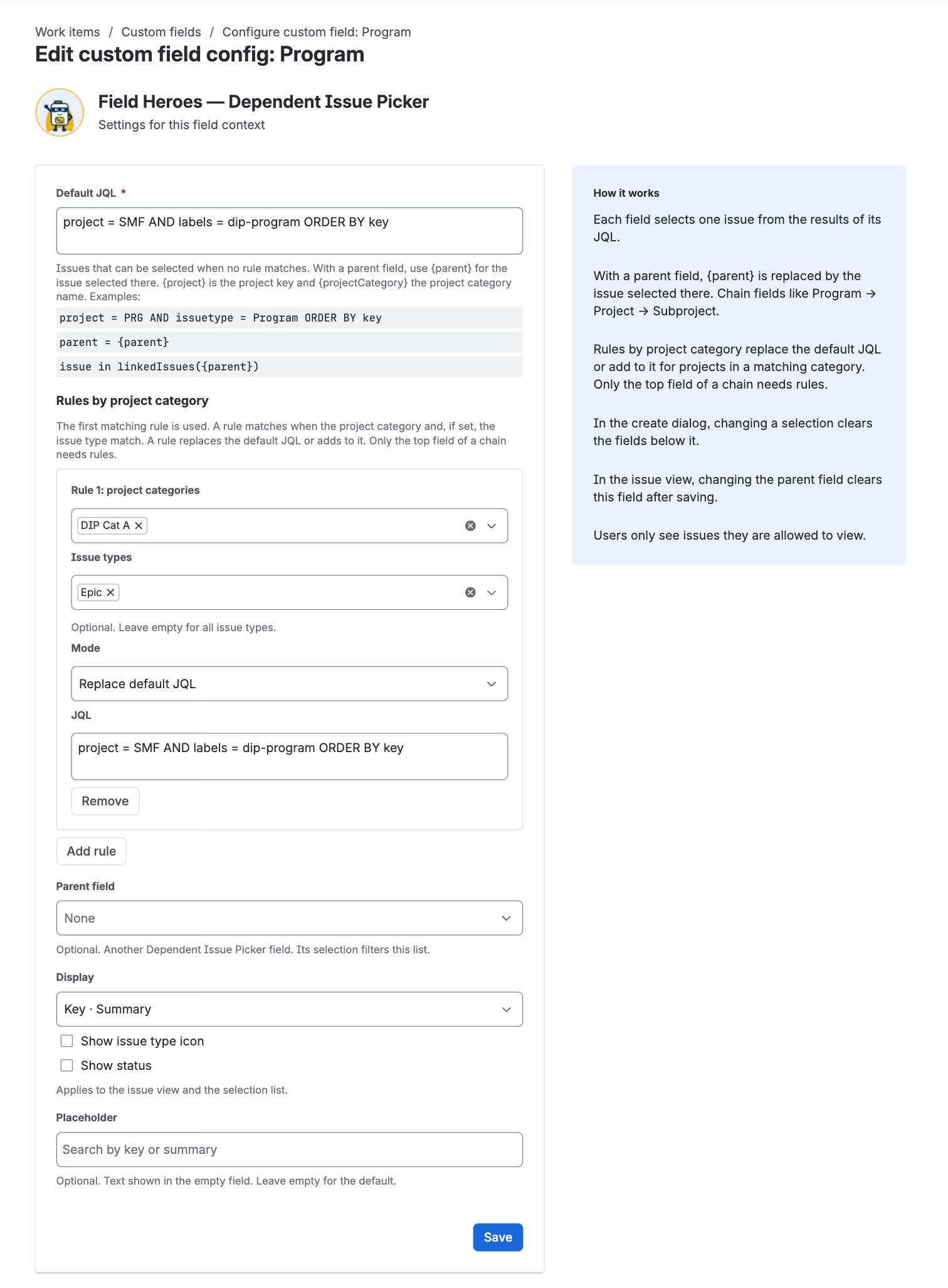
Required · What the field offers
- Default JQL (required): the issues that can be selected when no rule applies. An
ORDER BYat the end is kept. - Parent field (optional): another Dependent Issue Picker field. Its selection filters this list. A parent field requires
{parent}in the JQL, and{parent}requires a parent field. - Check on save: each JQL without placeholders is run once when you save. A rule with mode Add is checked together with the default JQL. If Jira rejects a query, Jira's message appears below the field and nothing is saved. JQL with
{parent},{project}or{projectCategory}can only be checked when the field is used, because these values come from the issue.
Placeholders
| Placeholder | Replaced by | Example |
|---|---|---|
{parent} |
Key of the issue selected in the parent field | parent = {parent} |
{project} |
Key of the project the issue belongs to | project = {project} AND issuetype = Epic |
{projectCategory} |
Category name of that project, already in quotes | projectCategory = {projectCategory} becomes projectCategory = "IT" |
Do not add your own quotes around {projectCategory}. If a value is missing, for example a project without a category, the field shows a message instead of a list.
Placeholders work in the default JQL and in every rule. They also work in the create dialog, before the issue exists.
Optional · How the field looks
- Display: Key · Summary (default), Summary, or Key.
- Show issue type icon and Show status: add the issue type icon and a status badge.
- Placeholder (optional, up to 100 characters): text shown in the empty field. Leave it empty for the default text.
These display settings apply to the issue view and the selection list.
AdvancedRules by project category and issue type
Use rules when one field should offer different issues depending on where the issue is created. Without rules you would need a separate field context per group of projects. With rules, one context is enough.
- Replace default JQL: the rule's JQL is used instead of the default.
- Add to default JQL: the rule narrows the default; both must match.
- Rules are checked from top to bottom; the first match wins. Put rules with an issue type above the general rule for the same category.
- Up to 20 rules per field context. Projects without a category use the default JQL.
Only the top field of a chain needs rules.
Example: rules by project category and issue type
| Mode | Project category | Issue type | JQL |
|---|---|---|---|
| Default | – | – | issuetype = Project ORDER BY key |
| Replace | IT | Epic | issuetype = Project AND project = ITPPM AND labels = epic-scope ORDER BY key |
| Replace | IT, IT Project | All | issuetype = Project AND project IN (ITPPM, PMO) ORDER BY key |
| Add | R&D | All | Adds project = RDPPM; result (issuetype = Project) AND (project = RDPPM) ORDER BY key |
The rule with an issue type comes before the general rule for the same category, because the first matching rule wins.
All fields at a glance
Under Settings → Apps → Field Heroes — Dependent Issue Picker, the section Your fields lists every field of this type with parent field, JQL and status.
The status shows Ready when a JQL is set, otherwise Not set up. The list is shown to Jira administrators only.

Tips for administrators
- Hide closed issues: add
AND statusCategory != Doneso users only see open items. - Sort the list: end the JQL with
ORDER BY, for exampleORDER BY summary. It is kept, also when a rule adds to the default JQL. - Keep the JQL bounded, for example by project. Jira Cloud rejects queries without a limit.
- Check what users will see: run the JQL in Jira's issue search first. Replace
{parent}with a real key to test a dependent field. - Avoid loops: a field must not point to a field below it in the chain. The app does not check this.
- Status “Ready” on the admin page means a JQL is set. It does not test the query.
- Placeholder text: if you leave it empty, the field shows “Search by key or summary”.
Where the app does not act
For users
- Each field holds one issue.
- Not available in the customer portal.
- Search matches the issue key or words in the summary.
- Lists, search and export show the issue key.
For administrators
- The JQL must restrict the search, for example by project. Jira Cloud rejects unbounded queries.
- The admin page shows the context ID, not the context name, when a field has several contexts.
- Rules match the project category name. Renaming a category requires updating the rules.
- The admin page and the parent field list only show fields that are on a screen of a project you can browse. Add new fields to a screen first.
What you see, why, and what to do
| What you see | Why | What to do |
|---|---|---|
| “Select <field> first” | The parent field has no value yet | Select a value in the field above |
| “No matching issues” | Nothing matches the search text and the field's JQL | Try the issue key or other words; admin: check the JQL |
| “This field is not set up yet. Ask your Jira admin to add a JQL in the field settings.” | The field context has no JQL | Admin: enter a default JQL in the context settings |
| “The parent field in this field's settings is not valid. Ask your Jira admin to check them.” | The parent field was deleted or changed | Admin: select the parent field again |
| “This project has no project category.” | The JQL uses {projectCategory}, the project has no category |
Admin: assign a category or change the JQL |
| “The project is not available.” | The JQL uses {project}, Jira did not pass the project |
Reload the page; admin: use a JQL without {project} for this case |
| A message that the issues could not be loaded | Jira rejected the JQL (often after a rename) or the search timed out | Admin: test the JQL in issue search and correct it |
| “The stored value is not an issue key. Select an issue again.” | The field holds a value the app did not write | Select an issue again |
| “This field could not be loaded. Reload the page.” / “Your selection could not be saved. Try again.” | A temporary error in Jira | Reload or try again |
| An issue is missing from the list | It does not match the JQL, or the user may not view it | Check the JQL and the user's permissions |
| The field below still shows the old value | Clearing runs after saving | Reload the issue |
| A rule is not applied | The category was renamed, an earlier rule matched, or the project has no category | Update the rule's categories or move the rule up |
| A field is missing on the admin page or in the parent field list | The field is not on a screen of a project you can browse | Add the field to a screen |
| Save is rejected with a message from Jira | The JQL is invalid or not bounded | Fix the JQL; the message names the problem |
Data handling
- The selected issue key is stored as the field value in Jira. The field settings are stored in the Jira field context.
- The app stores no data of its own and sends no data outside Atlassian.
- Search and issue details run as the signed-in user, so users only see issues they are allowed to view.
- The app itself reads only the field list and the field settings. The field list on the admin page is shown to Jira administrators only.
Required scopes
The app asks for these permissions when it is installed. Searches run as the signed-in user.
read:jira-workSearch issues and read field values as the signed-in user, read the field list.manage:jira-configurationRead the field settings (field context configuration) for the field and the admin page.External images (*.atlassian.net, api.atlassian.com)Load the issue type icons from your Jira site. Jira serves the icons of service projects from api.atlassian.com. Adding this permission is a major version, so a Jira administrator has to approve the update.
Removing the app
Uninstalling the app deletes all fields of this type together with their stored issue keys. The fields do not go to the trash and cannot be restored.
Export or note the values you need before you uninstall.
Wolzenburg Consulting
Wolzenburg Consulting is an Atlassian specialist from Germany. We plan and run migrations from Jira Data Center to Cloud and between Cloud sites, including everything standard migration tooling leaves open, from app data and custom configurations to boards, dashboards and automation. Where teams need more than the platform offers out of the box, we close the gap with configuration, automation or our own apps. Our work covers Jira, Jira Service Management, Confluence and Assets, from the first assessment to governance after go-live. Every project starts from data: we analyse your instance first, then plan scope and effort. Our background is hands-on, from IT operations to enterprise Atlassian architecture.
- Vendor
- Wolzenburg Consulting
- Support
- support@wolzenburg.de
- Tickets
- Raise a ticket
- Contact
- info@wolzenburg.de
- Website
- www.wolzenburg.de