
Field Heroes
Read-Only Fields for Jira Assets
Show Jira Assets attributes as read-only fields on Jira Cloud issues: searchable with JQL, one click to the object.

What Field Heroes does
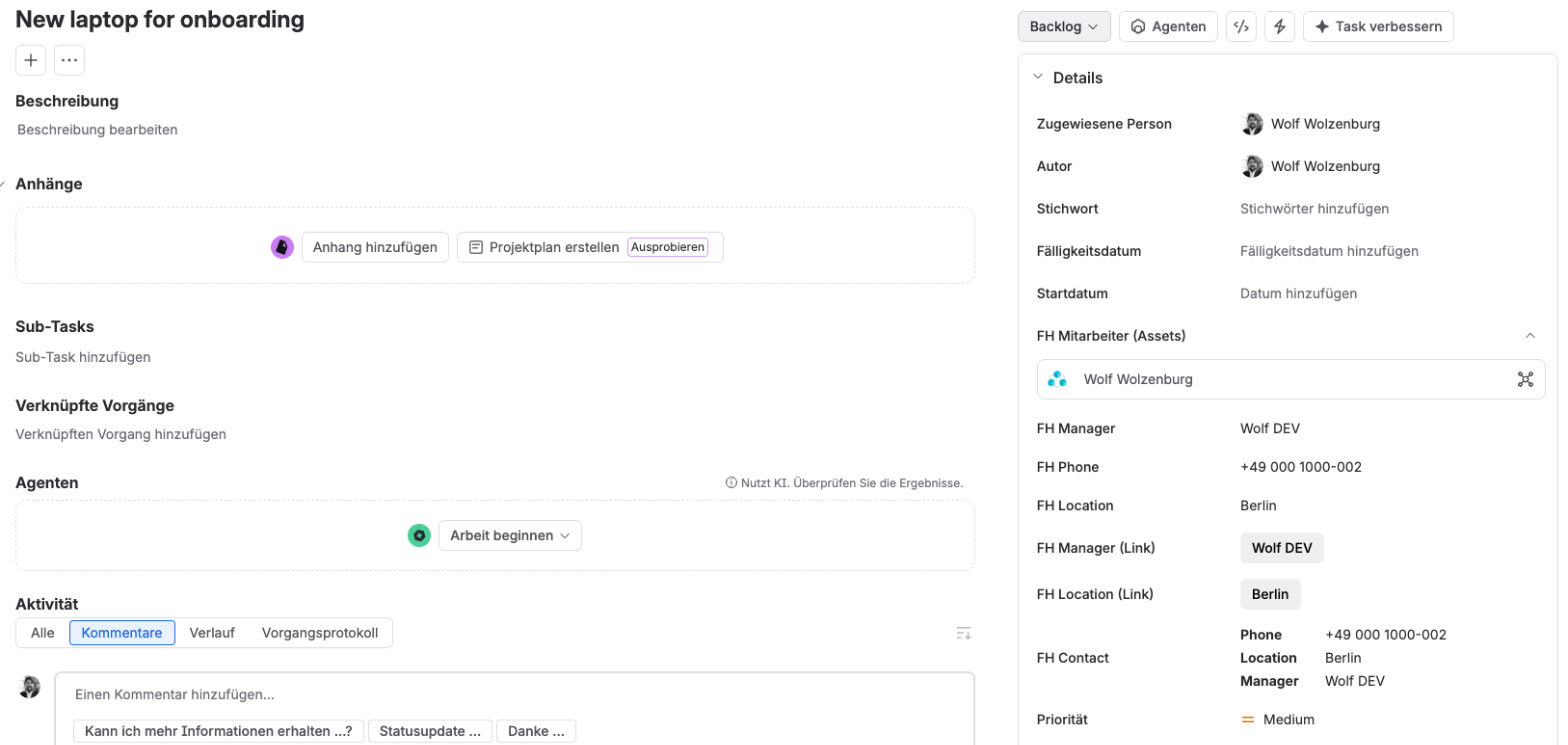
Field Heroes shows attributes of a Jira Assets object as read-only values on the issue, for example the assignee's manager, phone or location.
It is the Jira Cloud counterpart of the Data Center field type Assets readonly object.
Two field types
FH - Readonly
Shows text. One or more attributes can be displayed; each line carries the attribute name.
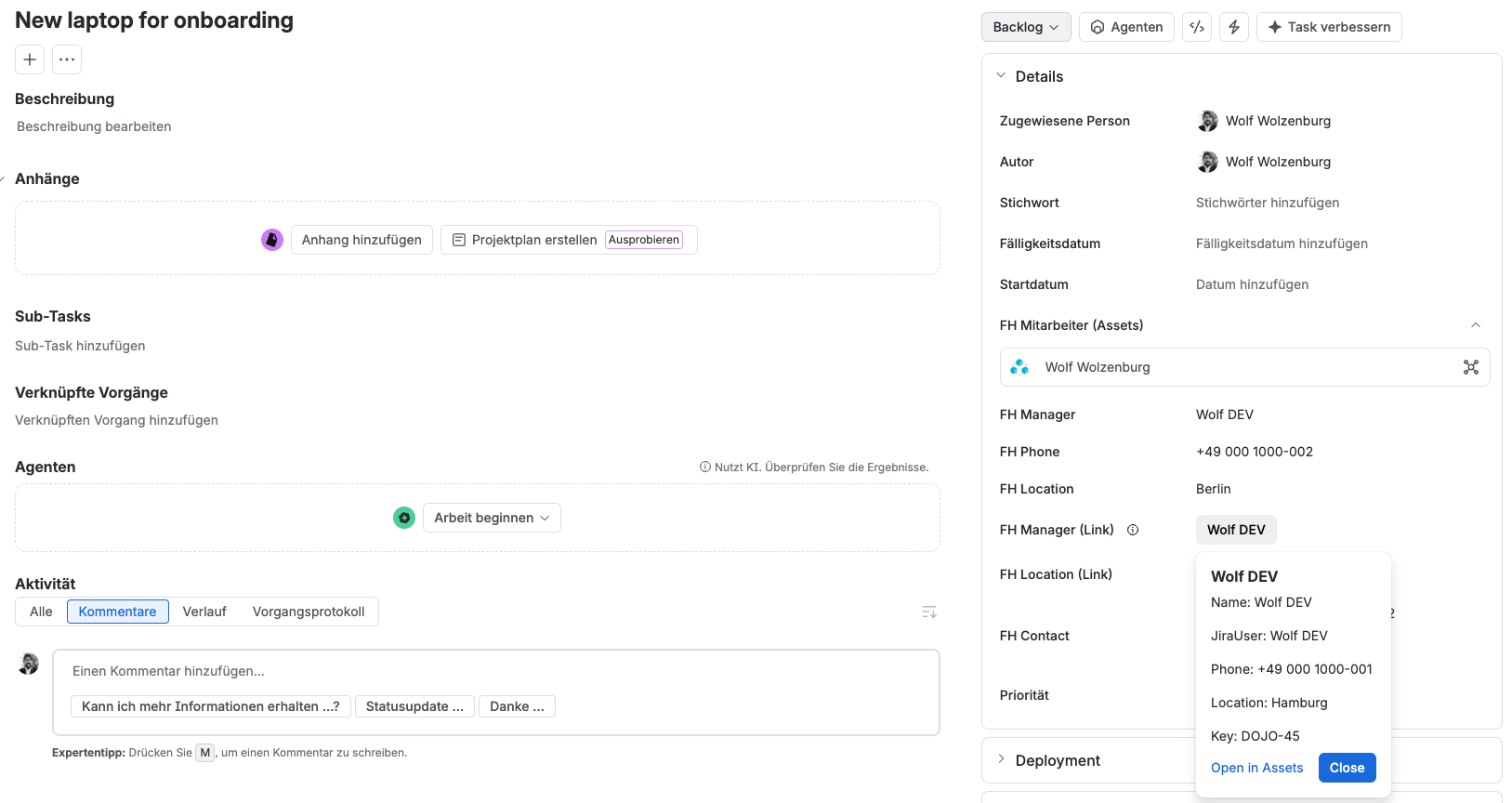
FH - Readonly (Link)
Shows a link to the Assets object. A click opens a popup with the attributes and the buttons Open in Assets and Close.
Set up a field in four steps
-
Step 1
Create the field
Go to Settings → Issues → Custom fields → Create custom field and choose FH - Readonly or FH - Readonly (Link).
-
Step 2
Open the configuration
In the field context, choose Edit custom field configuration.
-
Step 3
Choose source and attribute
Select where the value comes from, which Assets object to use and which attributes to show (details below).
-
Step 4
Add it to screens
Add the field to the screens on which it should appear.
Source and attributes (step 3)
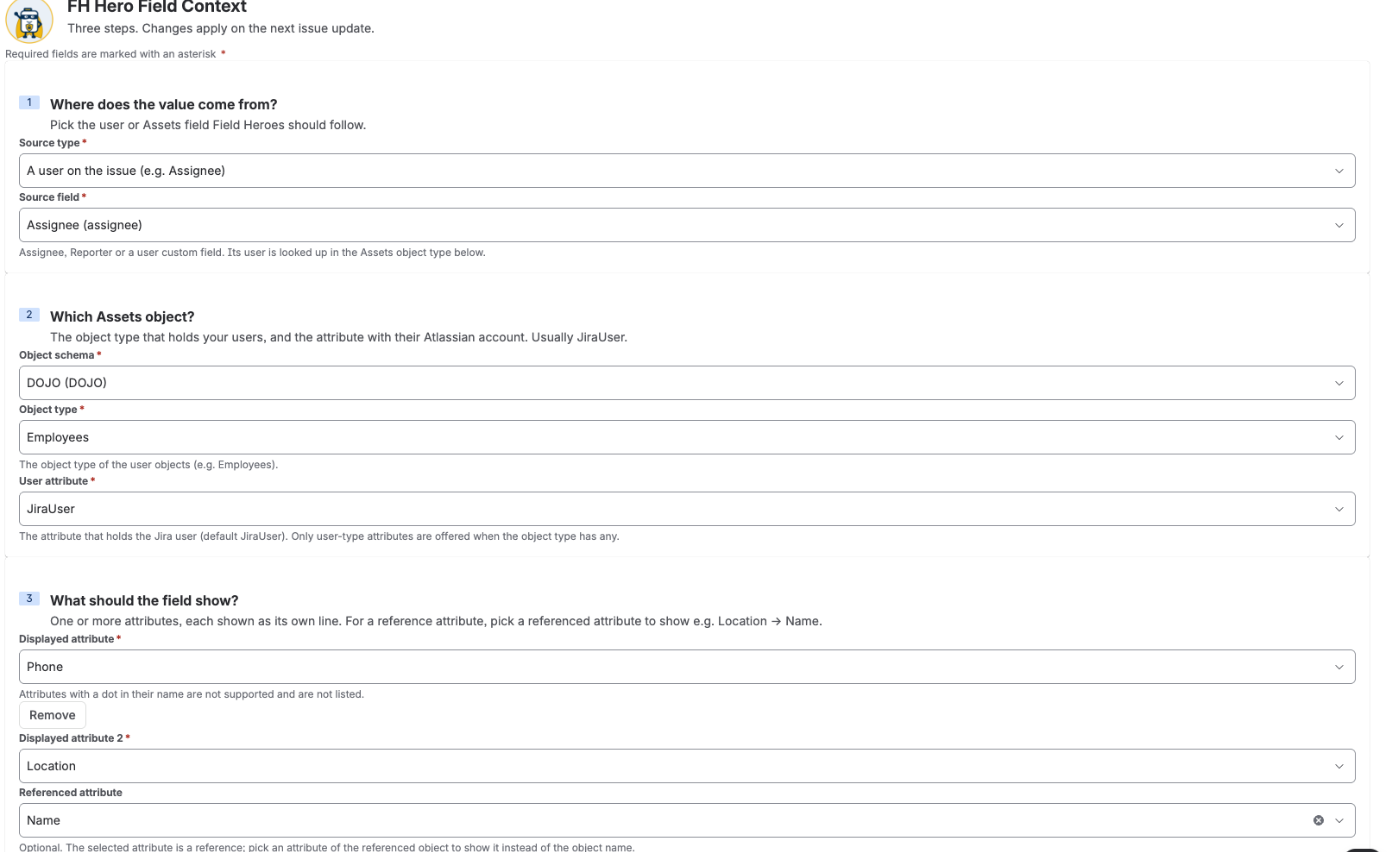
- Source type: User field (Assignee, Reporter or a user custom field) or Assets field.
- Source field: the field the value is taken from.
- Object schema: the Assets object schema to search in.
- Object type: for a user field, the object type of people, for example Employees.
- User attribute: the attribute that holds the Jira user. Default:
JiraUser. - Displayed attribute(s): up to 10. Reference attributes are followed one level deep, for example Location → Name. Attributes with a dot in their name are not supported.
All fields at a glance
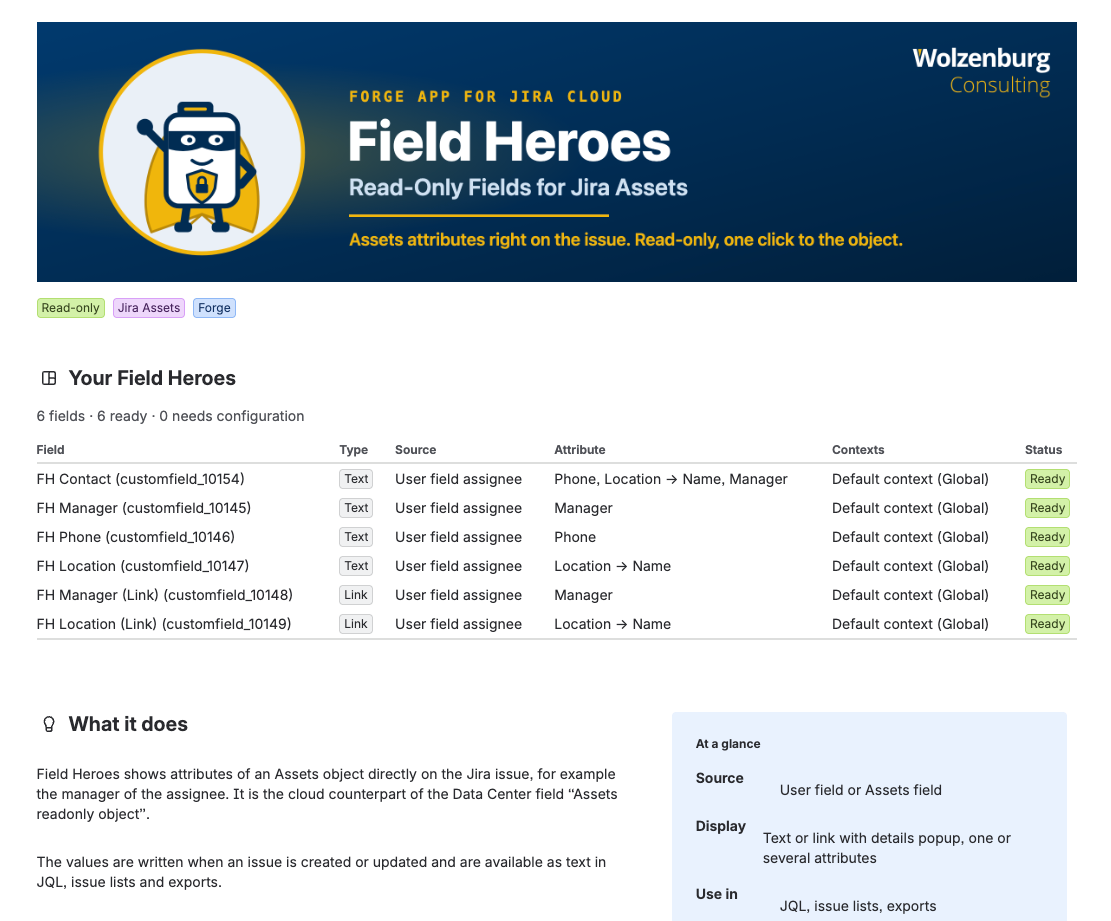
The admin page gives an overview of all Field Heroes fields with type, source, attributes and context. The status shows Ready or Needs configuration.
When values are written
- Values are written when an issue is created or updated, within a few seconds.
- Changes to the Assets object itself appear with the next update of the issue. The link popup shows the state of the last sync.
- If the source finds no unique object (no match or several matches), the field is cleared.
Values are real field values
The values can be used in JQL, issue lists and exports. A link field can be searched by object key or ID.
"Manager (Link).key" = "ITSM-123"
"Manager (Link).id" = 4711
"Manager (Link).key" in ("ITSM-123", "ITSM-124")
Put the field name and the dot together in quotes. Supported operators: =, !=, in.
Data handling
- Field Heroes runs on Atlassian Forge and makes no external calls.
- It writes only to its own fields, never to Assets.
- The displayed attribute values (for example names or phone numbers) are stored as field values in your Jira site. The app stores nothing outside Jira.
- Logs contain only technical identifiers: issue key, field ID and object ID.
Required scopes
read:jira-workmanage:jira-configurationwrite:app-data:jiraread:cmdb-object:jiraread:cmdb-schema:jiraread:cmdb-type:jiraread:cmdb-attribute:jiraread:servicedesk-request
Removing the app
Uninstalling removes the Field Heroes fields including their values.
Wolzenburg Consulting
Wolzenburg Consulting is an Atlassian specialist from Germany. We plan and run migrations from Jira Data Center to Cloud and between Cloud sites, including everything standard migration tooling leaves open, from app data and custom configurations to boards, dashboards and automation. Where teams need more than the platform offers out of the box, we close the gap with configuration, automation or our own apps. Our work covers Jira, Jira Service Management, Confluence and Assets, from the first assessment to governance after go-live. Every project starts from data: we analyse your instance first, then plan scope and effort. Our background is hands-on, from IT operations to enterprise Atlassian architecture.
- Vendor
- Wolzenburg Consulting
- Support
- support@wolzenburg.de
- Contact
- info@wolzenburg.de
- Website
- www.wolzenburg.de