
Field Heroes
Special Email Field
Fill a read-only text field on Jira Cloud issues with the email address of the current user, the assignee or the reporter.

What Special Email Field does
Field Heroes Special Email Field fills a read-only text field with the email address of the current user, the assignee or the reporter. Administrators define per project and issue type where the value is set and whether the field is shown.
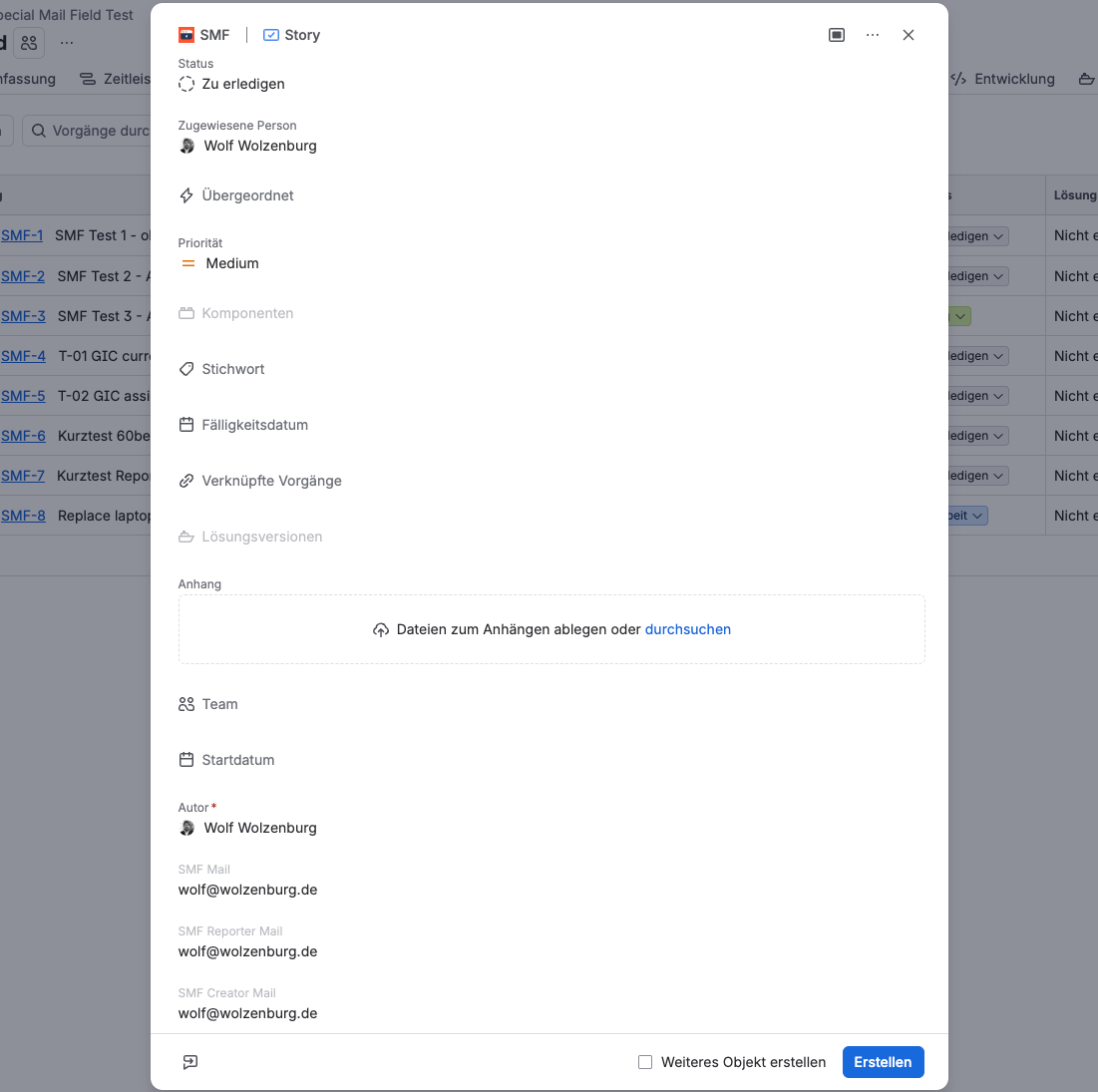
Example: when an agent creates an issue, the field “Creator email” already shows the agent's address in the create dialog. It is saved with the issue and cannot be edited.
It belongs to the Field Heroes app series. In the Jira interface the field is read-only for end users; in the customer portal it is not.
Three sources
Current user
The email address of the person creating the issue. Set only when the issue is created.
Assignee
The email address of the assignee. Set when the issue is created and again whenever the assignee changes.
Reporter
The email address of the reporter. Set when the issue is created and again whenever the reporter changes.
What you can build
Each action fills one text field from one source. Typical setups:
| Use case | Source | Views |
|---|---|---|
| Record who created the issue | Current user | Create |
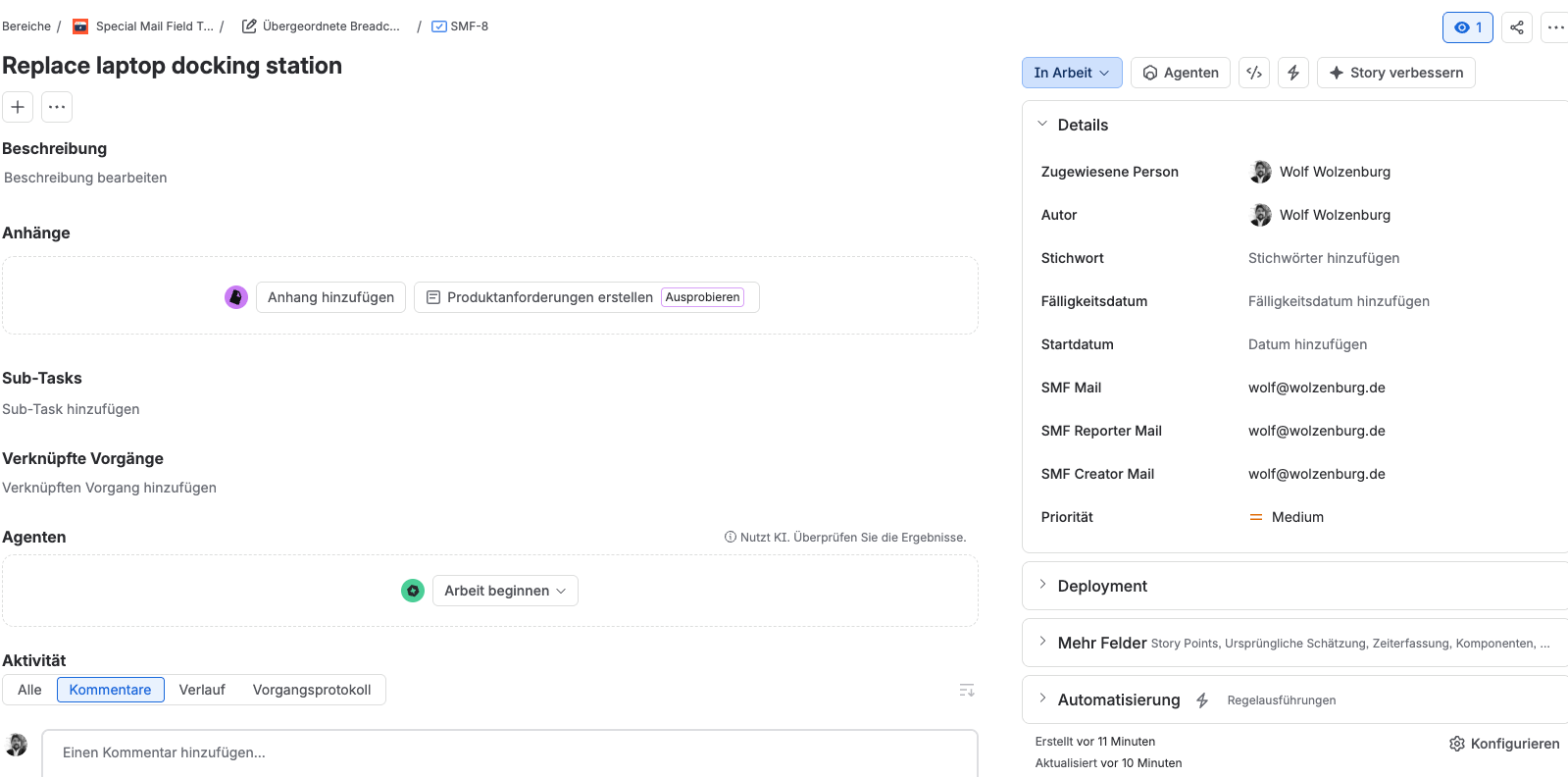
| Keep the assignee's address on the issue, also after reassignment | Assignee | Create, Issue view, Transition |
| Keep the reporter's address on the issue | Reporter | Create, Issue view, Transition |
| Capture the requester's address in the customer portal | Current user | Portal, Visible off |
Because the value is a normal text field, it is available wherever Jira shows field values: issue search, lists, exports, and integrations that read the issue. Note that REST calls and automation can still overwrite it.
Before you start
- The target field is a single-line text field on the relevant create, edit or transition screen. In the customer portal it must be on the request form of each request type.
- For the sources Assignee and Reporter, that field must be on the same screen.
- Fields filled from Current user belong on the create screen only, not on the edit screen, so they cannot be edited after creation. This requires a separate create screen in the project's screen scheme.
- The app user (atlassian-addons-project-access) needs Browse projects in the target projects. Otherwise projects are missing from the admin page and saving actions fails.
- Service projects: each action needs a request type or All request types. When request types are added, save the action again. Older actions without a request type show Needs update; the Update actions button converts them.
- A site admin approves the app's scopes when installing or upgrading.
Set up an action in four steps
-
Step 1
Create the target field
Go to Settings → Issues → Custom fields → Create custom field and choose a single-line text field.
-
Step 2
Add it to screens
Add the field to the create, edit and transition screens on which it should be filled, together with the source field.
-
Step 3
Open the admin page
Go to Settings → Apps → Field Heroes — Special Email Field.
-
Step 4
Create an action
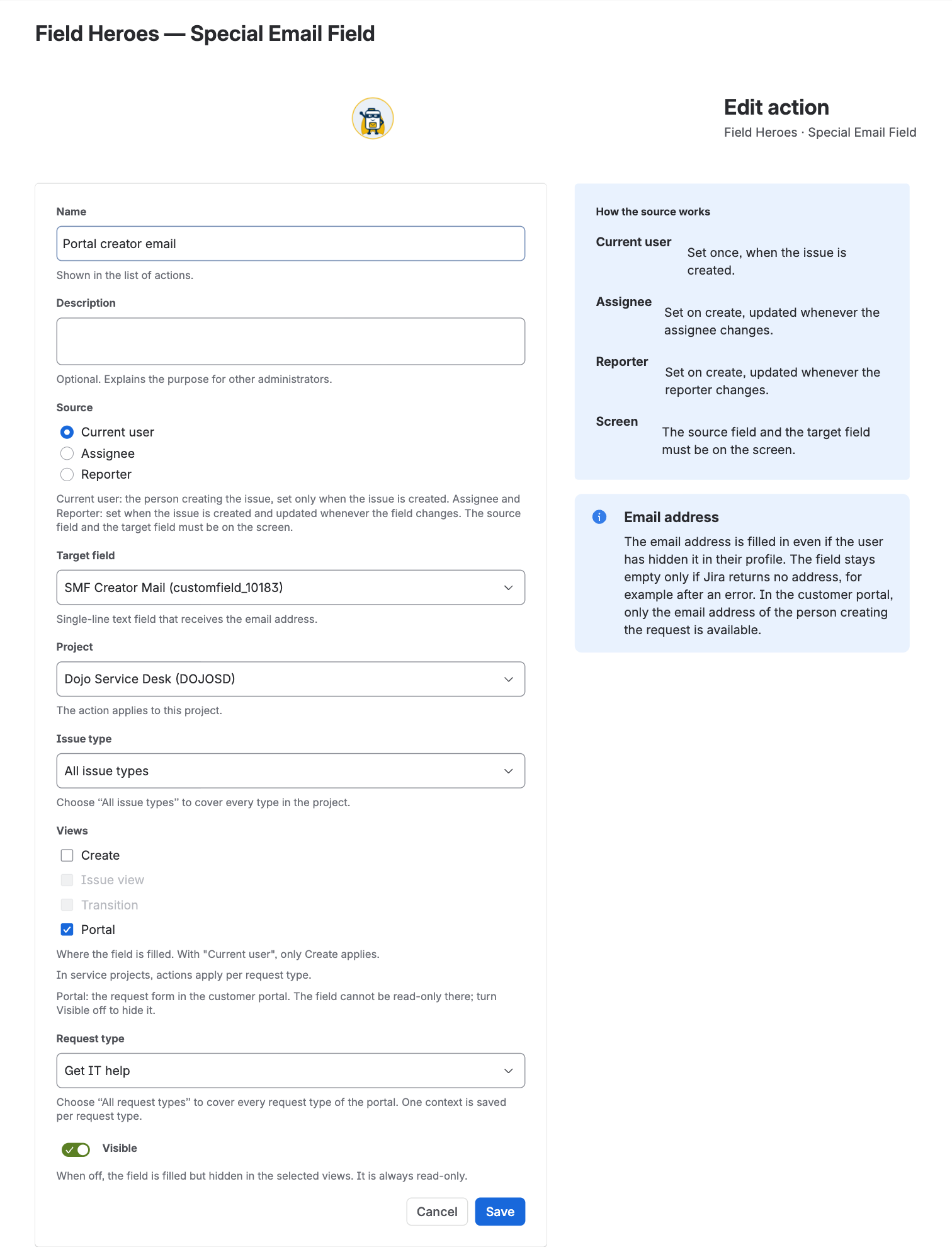
Choose Create action and select source, target field, project, issue type or request type and views (details below).
Action settings (step 4)
| Setting | What to enter |
|---|---|
| Name, Description | Shown in the list of actions. Description is optional |
| Source | Current user, Assignee or Reporter |
| Target field | The single-line text field that receives the email address |
| Project | Exactly one project per action |
| Issue type | One issue type or All issue types |
| Request type | Service projects only: one request type or All request types |
| Views | Create, Issue view, Transition, Portal; at least one. With Current user, only Create and Portal apply |
| Visible | Off hides the field in the selected views; the value is still stored |
Use only one action per field and view. Otherwise the result is undefined.
Customer portal
To capture the email address of the person raising a request in the customer portal:
- Add the target field to the request form of each request type. The request type must be in a portal group.
- Create an action with Source Current user, View Portal only, a request type or All request types, and Visible off.
Good to know
- Only Current user provides a value in the portal. Assignee and Reporter are not available there.
- If an agent raises a request on behalf of someone else, the agent's address is set.
- In the portal the field is not read-only, so turning Visible off is recommended.
- Embedded request forms and anonymous accounts are not supported. The portal is a preview feature of the Forge platform.
All actions at a glance
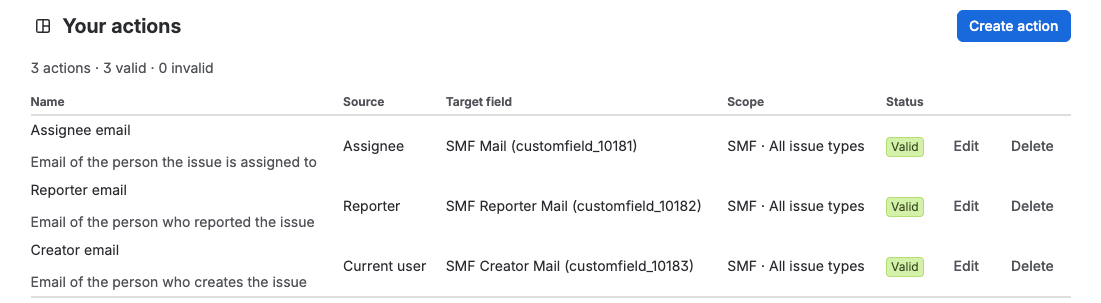
The admin page lists all actions with source, target field and scope. The status shows one of three values:
| Status | Meaning |
|---|---|
| Valid | The action is set up correctly |
| Needs update | An older action in a service project has no request type. Choose Update actions to set it to All request types |
| Invalid | The stored action is damaged, for example changed outside the app. It can only be deleted |
When values are written
- The app works in the create dialog, the issue view, on transition screens and in the customer portal, including the agent views in service projects.
- In the create dialog the value is set when the dialog opens and again when the source field changes.
- In the issue view and on transition screens the app never sets a value just because the issue is opened. A new value is written only when the source field changes.
- If Jira returns no email address, for example after an error, the field stays empty.
For key users: what to tell your colleagues
- The field fills itself. Nobody needs to type the address. In the Jira interface it cannot be edited.
- Wait a moment before you submit. The app fills the field right after the dialog opens. On a very slow connection, submitting immediately can leave the field empty.
- Assignee or reporter changed? The field follows in the create dialog, the issue view and on transition screens. Opening an issue alone never changes the value.
- Default assignee “Automatic” leaves the assignee address empty, even if Jira assigns someone after creation.
- Empty fields are hidden in the issue view. If the field is missing there, it has no value.
- Cloned issues keep the addresses of the original. Bulk changes, imports, automation and the email handler do not fill the field either.
Tips for administrators
- Put Current user fields on the create screen only. Then nobody can change them later. This needs a separate create screen in the project's screen scheme.
- Source and target on the same screen for Assignee and Reporter. Fields on another tab of the screen are filled too.
- Integrations and webhooks: A change of assignee or reporter produces two update events. The first still carries the old address, the second the new one. Systems that read the address from webhooks should use the latest event.
- Cloning: if clones need fresh addresses, set them with your own Jira automation.
- After a major app update a site admin approves the new permissions; then choose Update actions on the admin page if it is shown.
Troubleshooting
In the issue
The field shows no error messages. If no address can be set, it stays empty.
| What you see | Why | What to do |
|---|---|---|
| The field stays empty after create | The form was submitted before the app finished, the field is not on the create screen, or the assignee was Automatic | Check the screen; wait a moment before submitting |
| The field is empty in the issue view | Opening an issue never sets a value; it is filled when the source field changes | Change the source field |
| The address does not change after reassignment | The change was made outside the Jira interface (REST, automation, bulk change), or the source field is not on the screen | Change it in the issue view or on a transition screen with both fields |
| The portal field is empty | The target field is not on the request form, the request type is in no portal group, or the source is not Current user | Check the request form and the action |
In the action form
| Message | Why | What to do |
|---|---|---|
| “The source currentUser is only allowed for create views.” | Current user is combined with Issue view or Transition | Select only Create (or Portal) |
| “The selected views do not match the project type.” | A selected view does not exist in this type of project | Select views that fit the project |
| “Jira views and agent views must not be mixed in one action.” | One action mixes views of a software or business project with agent views of a service project | Create separate actions |
| “Select a request type.” | Portal or an agent view is selected without a request type | Select a request type or All request types |
| “The project has no request types.” | The service project offers no request types | Create request types in the service project first |
| “Several projects or issue types” | This older action covers several project and issue type combinations | Saving replaces them with the one combination selected in the form |
| A project is missing from the list, or saving fails | The app user atlassian-addons-project-access lacks Browse projects | Grant Browse projects in the project's permission scheme |
On the admin page
| What you see | Why | What to do |
|---|---|---|
| “Actions need an update”, status “Needs update” | An action in a service project has no request type | Choose Update actions |
| “Skipped: <name> (…)” after Update actions | This action could not be updated; the reason is shown in brackets | Open the action, check project and request type, and save it again. If the reason is “The project has no request types.”, create request types in the service project first |
| Status “Invalid” | The stored action can no longer be read; Edit is disabled | Delete the action and create it again |
| “Unknown field (…)” in the Target field column | The target field was deleted or is no longer a single-line text field | Edit the action and select a target field |
Where the app does not act
- Works only in the Jira UI: create dialog, issue view, transition, customer portal. Not filled by REST, automation, bulk changes, cloning, import, email handler, or inline create on boards and backlogs.
- Changes are applied after the dialog has loaded. The field briefly shows its old value. If the form is submitted before the app has applied its changes (e.g. on a very slow connection), the field stays empty.
- Fields hidden by the user via Show fields are skipped and stay empty.
- Issue view and transition are preview features of the Forge platform. They never set a value when opened, only when the source field changes.
- Read-only and hidden apply only in the UI. REST and automation can still write the field. Empty read-only fields are hidden in the issue view.
- Up to 5 UI-modification apps per context. Other apps (e.g. ScriptRunner Behaviours) may run alongside but must not change the target field.
Data handling
- The app reads the email address as the app via the Jira REST API (
GET /rest/api/3/user/email, scoperead:email-address:jira). It is filled in even if the user has hidden it in their profile. The user's own permissions and privacy settings do not matter. - Customer accounts only receive their own email address.
- If Jira returns no address (e.g. after an error), the field stays empty.
- The app stores no data of its own. Actions are stored as Jira UI modifications. No data leaves Atlassian.
- The email address is stored as the value of the target field in your Jira site.
Required scopes
read:jira-userread:email-address:jiraread:jira-workread:servicedesk-requestmanage:jira-configurationwrite:jira-workmanage:jira-projectread:app-data:jirawrite:app-data:jira
Removing the app
After uninstalling, no more email addresses are filled in, and the app no longer makes the field read-only or hides it.
The target fields are standard Jira text fields that administrators create themselves. The app does not create any fields.
Wolzenburg Consulting
Wolzenburg Consulting is an Atlassian specialist from Germany. We plan and run migrations from Jira Data Center to Cloud and between Cloud sites, including everything standard migration tooling leaves open, from app data and custom configurations to boards, dashboards and automation. Where teams need more than the platform offers out of the box, we close the gap with configuration, automation or our own apps. Our work covers Jira, Jira Service Management, Confluence and Assets, from the first assessment to governance after go-live. Every project starts from data: we analyse your instance first, then plan scope and effort. Our background is hands-on, from IT operations to enterprise Atlassian architecture.
- Vendor
- Wolzenburg Consulting
- Support
- support@wolzenburg.de
- Tickets
- Raise a ticket
- Contact
- info@wolzenburg.de
- Website
- www.wolzenburg.de